
Kling 4.0 Image to Video
Upload a photo, describe what should move, and Kling 4.0 animates it starting from that exact frame. Add a second photo to decide where the shot ends.
How to choose a photo
Frame it as the opening shot
Kling 4.0 starts from the exact composition you give it. If the subject will walk, turn or reach, leave empty space on that side. A tight crop gives the motion nowhere to go and often comes back as a slow zoom instead.
Crop to the shape you want
The image route takes its aspect ratio from the photo: a 9:16 phone portrait gives a vertical clip, a 16:9 still gives a widescreen one. Crop before uploading. Anything between 2:5 and 5:2 is accepted.
Give it enough pixels
The floor is 300 px on the short side, but output runs up to 1080p. A photo at least 1080 px on its short edge keeps hair, fabric and skin texture from going soft once they start moving.
One clear, unblocked subject
Faces should be fully visible, and hands should already be in frame if they are going to move. Group shots work too, but the model has to guess who leads, so say it in the prompt.
Strip overlays first
Captions, watermarks, borders and collage grids are read as part of the scene. Left in, they wobble or smear along with everything else, so remove them before you upload.
Match the second photo to the first
For a first-and-last-frame clip, take or generate both images from the same camera position and light. The bigger the jump between them, the more the model has to invent on the way.
How to write motion and camera prompts for image to video
A text-to-video prompt has to build the whole scene. An image-to-video prompt does not: the photo already fixes the subject, wardrobe, setting and light. Spend your words on what changes over time.
Re-describing the picture ("a woman in a red dress in a garden") adds nothing the model can act on, and adjectives like "cinematic" or "4K" do not move anything either.
Write it in this order
- Main action. One verb phrase for the subject: "she lowers the camera and laughs", "the waves roll in and break on the rocks".
- Secondary motion. What reacts to the main action: hair, steam, leaves, fabric, reflections. This is what makes a still look filmed rather than warped.
- Camera. Name one move and its speed, or say the camera is locked off. Two moves in a five-second clip usually fight each other.
- Sound. Every Kling 4.0 clip comes with generated audio, so write the ambience you want and put spoken lines in quotation marks.
- What must not change. Close with the guardrails: "keep her face and outfit unchanged", "the logo stays readable".
Camera moves that work from a still
| Move | What to write | Works well for |
|---|---|---|
| Push in | "the camera slowly pushes in toward her eyes" | Portraits and emotional beats |
| Pull back | "the camera pulls back to reveal the whole kitchen" | Showing context the crop hides |
| Pan | "slow pan left across the skyline" | Wide landscapes and interiors |
| Orbit | "the camera arcs 45 degrees around the bottle" | Products, food and sculpture |
| Handheld | "slight handheld sway, as if shot on a phone" | Street photos and vlog-style shots |
| Locked off | "static camera, no movement" | Talking heads, keeping a face sharp |
Fit the action to the length
Clips run from 3 to 30 seconds. At 5 seconds, plan one action and one camera move. At 15 seconds you can chain two or three beats with "then". At 30 seconds, write it like a short scene with a beginning, middle and end, or the model fills the spare time with drift.
One rewrite, before and after
Before: "A beautiful woman in a garden, cinematic, 4K." Every word of that is already in the photo or is something a video cannot act on.
After: "She turns from the roses toward the camera and smiles; a few petals fall past her shoulder; the camera eases back one step; birdsong and a light breeze." Each clause hands the model something to animate.
For what the model can do beyond a single photo, see Kling 4.0’s release date, features and specs. No photo yet? Describe the whole scene in words with Kling 4.0 text to video instead.
Examples: the photo, then the clip
Input

First frame Kling 4.0 output
Sorceress weaving red threads
Input
First frame 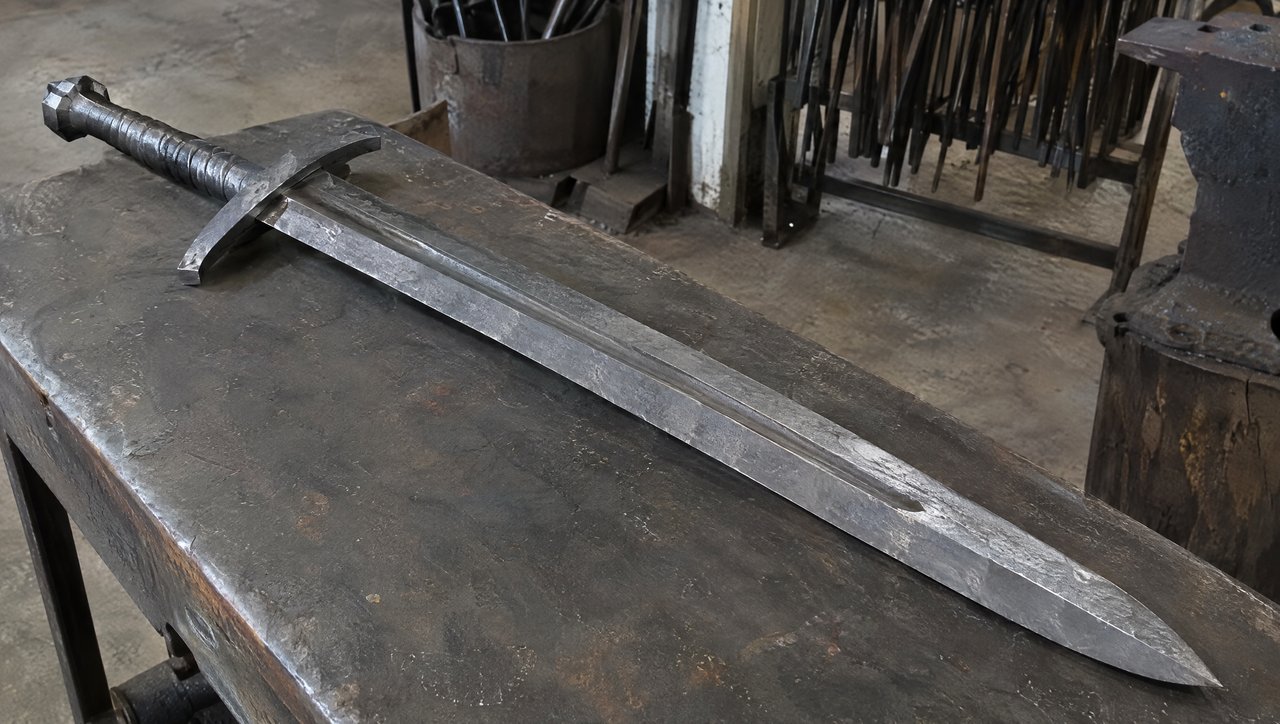
Last frame Kling 4.0 output
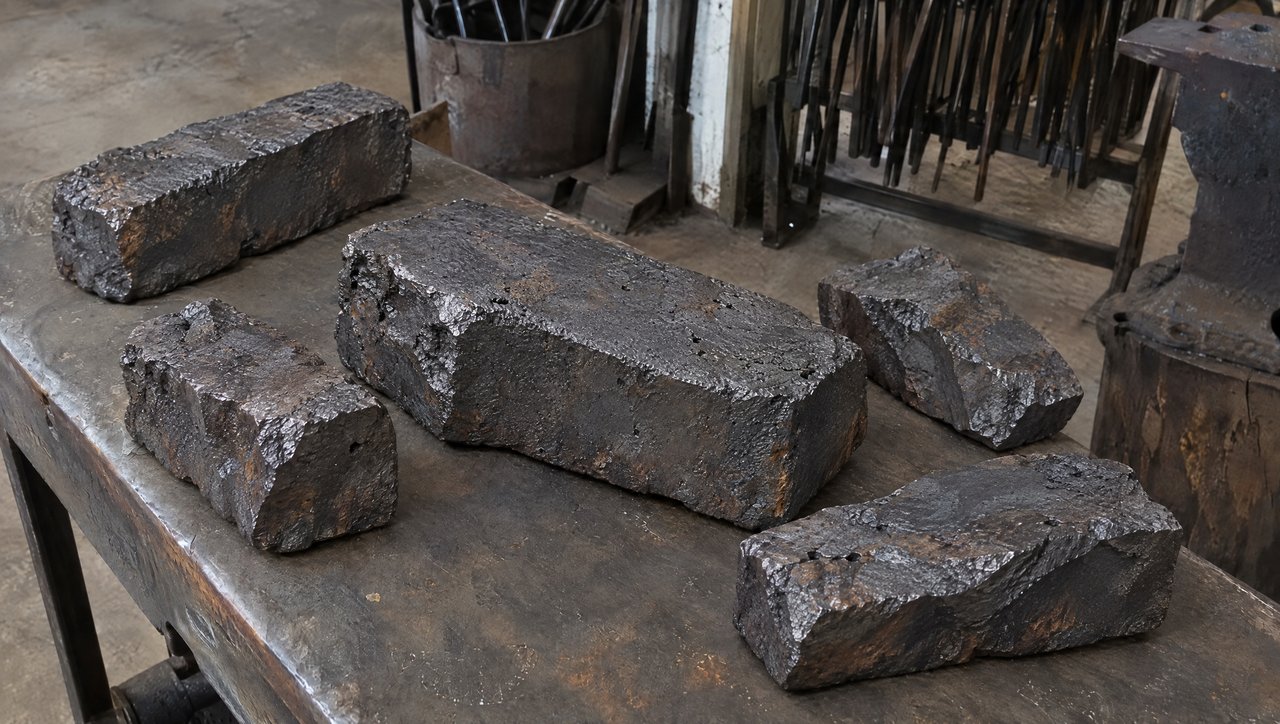
Raw iron to greatsword
Prompt SCENE CONTEXT EXACT 1 CHARACTER — NO DUPLICATES. Interior, a worn blacksmith workshop, daytime. The same blacksmith removes the raw material, works it into a greatsword, and returns the completed sword to the original table.15 seconds, six shots. Manufacturing time is compressed through editorial cuts; individual actions retain natural weight and speed. ACTIVE REFERENCES: @Image1: exact first-frame anchor. Preserve all five iron blocks, their arrangement, the tabletop, background tools, perspective, and lighting. This image is the starting state of an active pickup shot.@Image2: exact final-frame anchor and finished-sword design. Preserve the blade silhouette, central fuller, angular curved crossguard, spiral metal grip, faceted pommel, diagonal placement, perspective, and background. This composition is reached through a visible physical placement. LOCATION MAP: The worktable fills the foreground. …
Input
First frame Kling 4.0 output
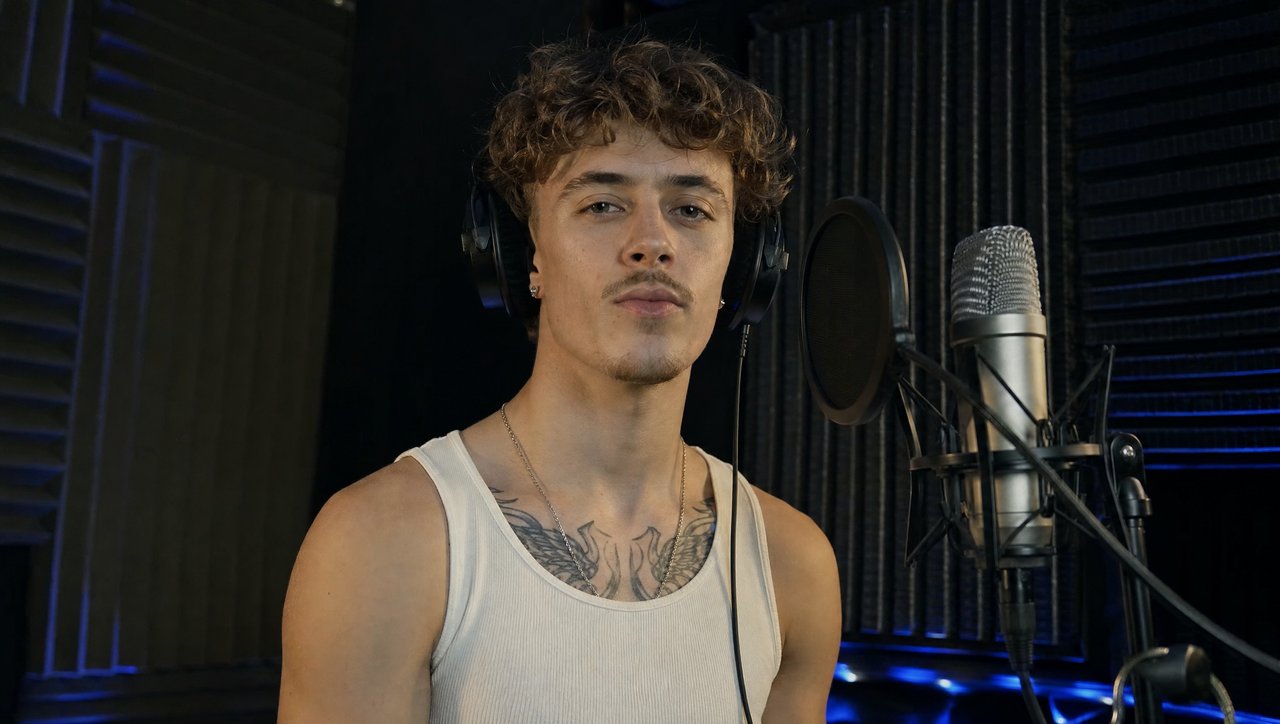
Vocalist in a recording booth
Input
Reference image Kling 4.0 output
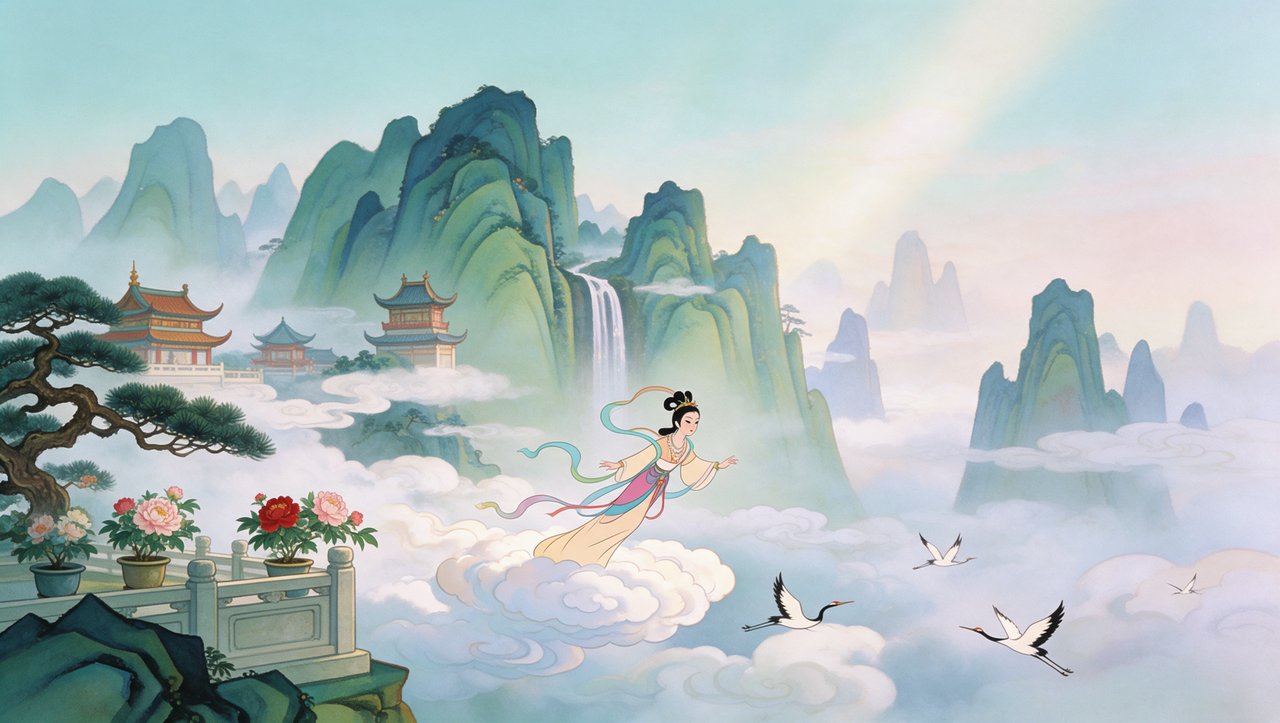
Painted immortal among cranes
What each demo shows
- Sorceress, 15 s from one first frame. The composition barely shifts; the life comes from the thread, the coins and the hair. A good model for portraits where you want movement without losing the face.
- Greatsword, 15 s from a first and a last frame. Two photos shot from the same angle let Kling 4.0 plan six shots of forging between them. Kling4 supports this pairing: add the start image first and the end image second. The prompt shown is an excerpt of Kling AI’s much longer original.
- Vocalist, 30 s from one first frame. A full 30-second take with singing, built from a single still. Paid runs on Kling4 reach 30 seconds; the free trial stops at 5.
- Immortal among cranes, 7 s from a reference image. Kling AI fed the painting in as a style reference rather than a fixed opening frame, which is why the camera reframes it. On Kling4 a single upload always becomes the first frame, so expect a result that keeps closer to the original layout.
How it works: from upload to clip
Drop in one photo
A single image is pinned as the first frame: the clip opens on it and your prompt decides what happens next. This is also what the no-login trial takes. One photo gets one watermarked 5-second 720p clip, once every 24 hours.Add a second for the ending
Two images become a first and a last frame, in the order you added them, and Kling 4.0 works out the motion in between. Two-photo runs need a signed-in account with credits.Three or more make a reference set
Three images or more, or any video clip, switch the run to a reference set. The pictures now guide characters, products and style instead of fixing frames. Type the tags yourself (@Image1, @Image2…); one clip per run.Write the change, then start
Describe the motion in up to 2,500 characters, pick 3 to 30 seconds and 720p or 1080p, then start the run. Nothing renders until you click. Signed-in runs cost 3 credits a second at 720p or 5 at 1080p.
Image to video questions
What images work best for Kling 4.0 image to video?
Sharp photos with one clear subject, even light and room around it in the direction it will move. Crop to the shape you want to deliver first, since the clip copies the photo’s aspect ratio, and remove captions, borders and watermarks, which would be animated too. Photos, renders, illustrations and paintings all work; what matters is that the composition already looks like the first frame of a shot.
Can Kling 4.0 animate photos of people?
Yes. Portraits, couples and group shots all work, and because Kling 4.0 generates sound with every clip, a person can say a line you write in quotation marks. Kling lists nine speech languages, among them English, Spanish, German and Hindi. Only upload photos you have the right to use, ideally with the person’s consent. The safety check can refuse some pictures.
How do I keep a face consistent?
Start from a sharp, front-lit photo where the face takes up a good share of the frame. Keep the action modest: big head turns, hands crossing the face and fast spins are where identity slips. End the prompt with “keep her face unchanged”. For several shots of one person, upload three or more angles of the same face as a reference set and tag them in the prompt.
Which file formats and sizes are supported?
For Kling 4.0 frames, use JPG or PNG up to 10 MB, at least 300 pixels on the short side, with an aspect ratio between 2:5 and 5:2. The no-login trial also accepts WebP: your browser re-encodes the photo as a JPEG no larger than 2,048 pixels on the long side. A reference clip can be MP4 or MOV, at least 3 seconds long and up to 200 MB.