
Kling Motion Control
Pair a character image with a driving video and the character performs the moves from the clip. On Kling4 that works three ways: two dedicated motion control models, or Kling 4.0 with a reference clip.
How motion transfer works
The character image: who
Face, body shape, clothing and, in most cases, the setting. Whatever the image does not show, the model has to invent, so it should show as much of the character as the clip will move.
The driving video: what and when
The sequence of poses and their timing. With Kling 4.0 the clip can also hand over its camera path and its cuts, if the prompt asks for them.
With a motion control model
Kling 3.0 Motion Control, which the generator above starts on, and Kling 2.6 Motion Control are built for one job: map the body in the clip onto the character in the image. They take exactly one image and one clip, the prompt is optional and only steers details like light or expression, and the result runs as long as the clip.
A character orientation setting decides whose facing wins. Following the image keeps the pose direction of your picture and accepts clips up to 10 seconds; following the video lets the character turn with the performer and accepts up to 30. The clip’s own audio is kept by default.
With Kling 4.0 and a reference clip
Kling 4.0 has no separate motion control model. Its Omni Reference mode accepts a video as one of the references, and your prompt says what to take from it: the movement, the camera, the edit, or all three. You set the output length (3 to 30 seconds), Kling 4.0 writes fresh sound, and extra images can bring in a second character or a location. Kling4 attaches one clip per run.
To use it, pick Kling 4.0 in the generator’s model menu and type the tags by hand: the first image is @Image1, the clip is @Video1. The Kling 4.0 Omni Reference guide covers tagging and multi-reference setups in depth.
Which option to pick
| — | Kling 3.0 Motion Control | Kling 2.6 Motion Control | Kling 4.0 + reference clip |
|---|---|---|---|
| Best for | Pose transfer on the newer motion model | Pose transfer at the lowest rate | Restaging a clip with a new character, set or camera |
| Inputs | 1 character image + 1 driving clip | 1 character image + 1 driving clip | Reference images + 1 clip, tagged in the prompt |
| Driving clip | 3–10 s, or up to 30 s when orientation follows the video | 3–10 s, or up to 30 s when orientation follows the video | 3–30 s |
| Clip file | MP4 or MOV, up to 100 MB | MP4 or MOV, up to 100 MB | MP4 or MOV, up to 200 MB |
| Output length | Same as the clip | Same as the clip | 3–30 s, set by you |
| Sound | Keeps the clip’s audio by default | Keeps the clip’s audio by default | New sound generated |
| 720p | 3 credits/s | 2 credits/s | 1.8 credits/s |
| 1080p | 4 credits/s | 3.2 credits/s | 3 credits/s |
| Billed seconds | Length of the clip | Length of the clip | Output + the longer of clip and output |
Rates from Kling4’s model settings, 3 Nov 2026. Worked example for a 10-second driving clip at 720p: 30 credits on Kling 3.0 Motion Control, 20 on Kling 2.6 Motion Control, and 36 on Kling 4.0 with a 10-second output ((10 + 10) × 1.8).Motion transfer is not part of the free trial. The no-login trial makes one 5-second Kling 4.0 clip from text or a single photo; anything with a driving video needs a signed-in account with credits. Kling 2.6 Motion Control is the cheapest way in at 2 credits per second of clip. Just want to see the model first? Try Kling 4.0 from a text prompt.
Tips for the driving video
Match the framing
A full-body character image needs a clip with the performer head-to-toe in frame the whole time. Drive a waist-up portrait with a full-body dance and the model has to make up the legs.
One performer
A single, clearly separated subject transfers cleanly. With two or more people in the clip, the model has to choose whose moves to copy and may blend them.
Trim to the move
Motion control bills every second of the clip, and Kling 4.0 bills at least the clip’s length on top of the output. Cut lead-in and dead time first; 3 seconds is the minimum.
One continuous take
A cut makes the pose jump between two frames, which a motion control model renders as a glitch. Kling 4.0 can copy cuts on purpose when the prompt asks, as the canyon demo below does.
Readable motion
A locked-off or slow camera, even light and a plain background make the body easy to track. Heavy motion blur, fast spins and hands hidden behind the torso are the usual failure points.
Right length for the setting
On the motion models, keep the clip to 10 seconds unless orientation follows the video, which allows 30. Kling 4.0 takes 3 to 30 seconds of reference footage.
Examples: character, clip, result
Input
Character image 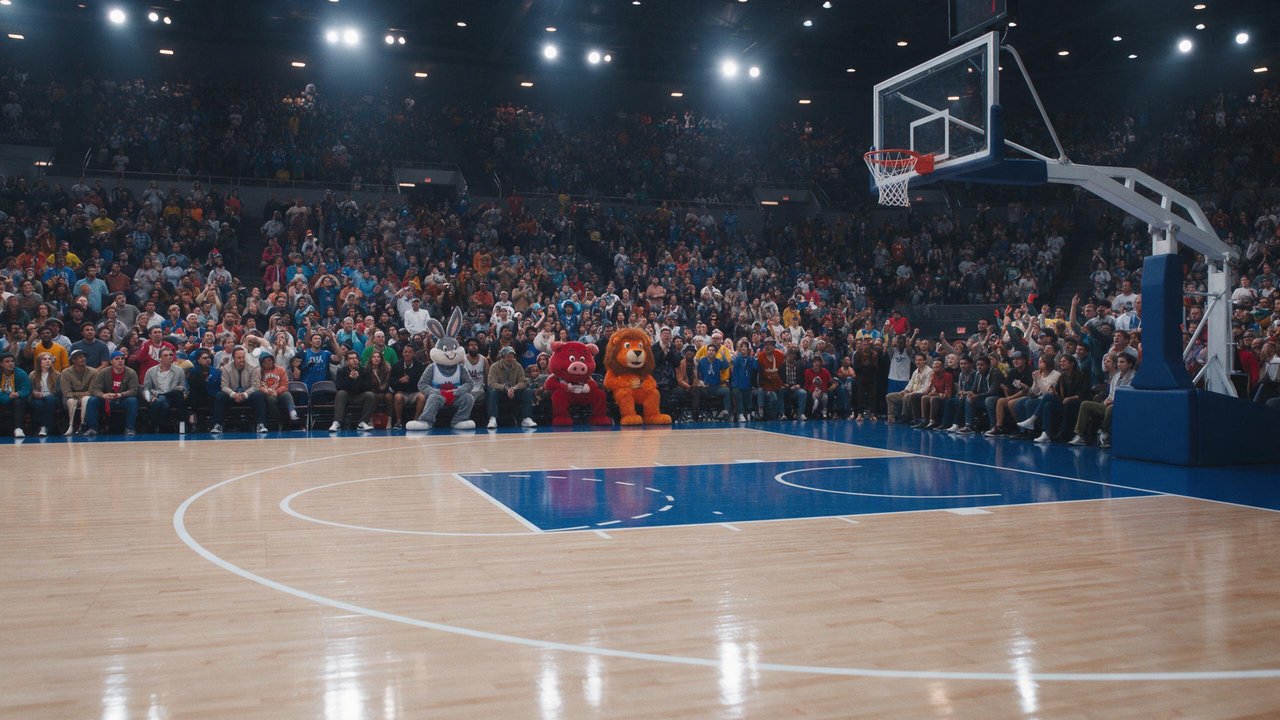
Scene image Driving clip Kling 4.0 output
Arena dunk from a reference clip
Input
Character and scene image Driving clip Kling 4.0 output
Office chair canyon jump
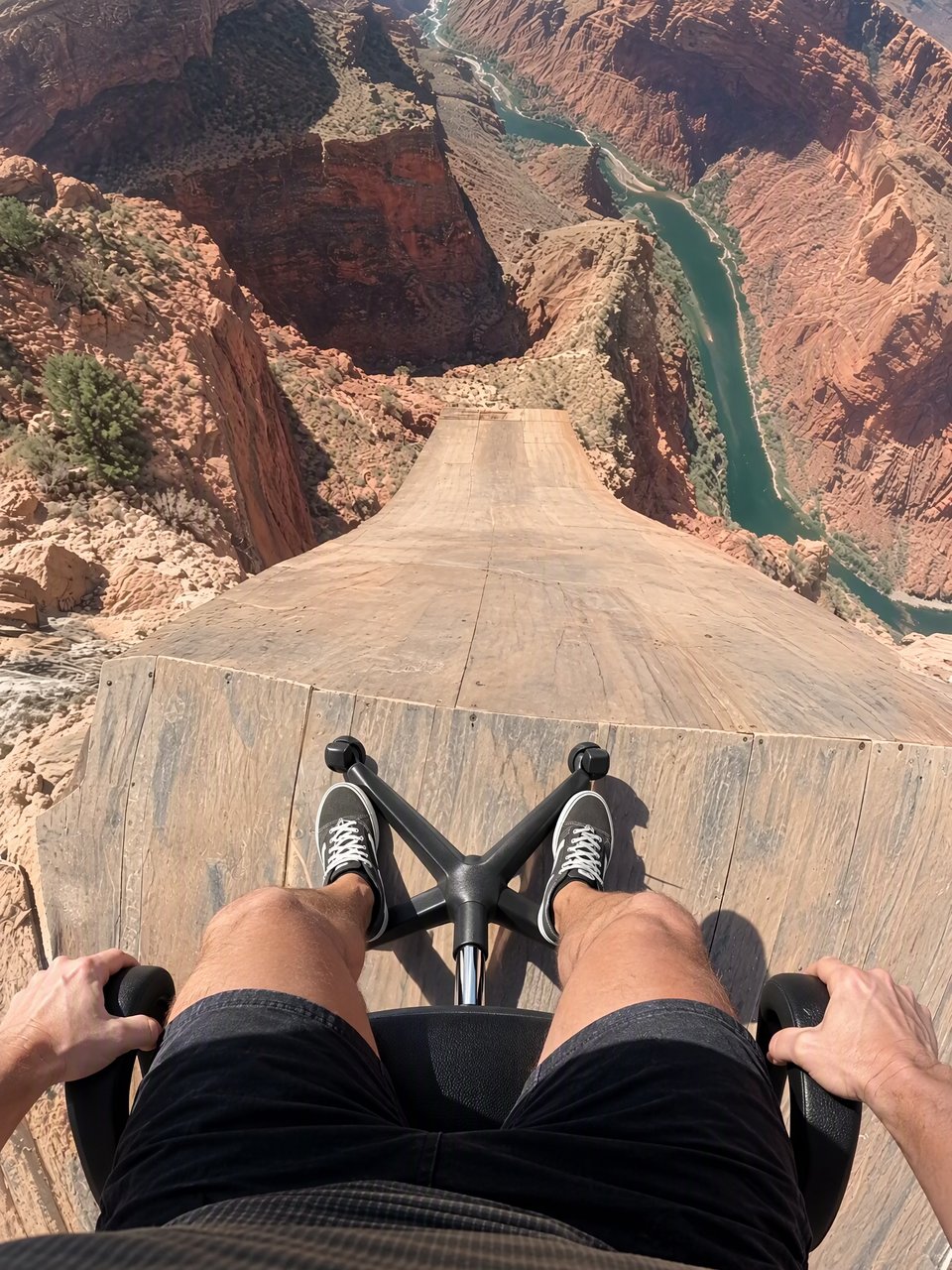
Prompt @Image1 is the first frame. @Video1 is the reference for camera, motion, timing and cuts. Recreate @Video1 shot-for-shot and cut-for-cut, but starting from @Image1: the rider is SITTING in a black office swivel chair instead of standing on a bike. Same chest-mounted GoPro fisheye POV, same ramp, canyon, river, orange parachute with white ring, airboat and cheering crew; same three jump-cuts and audio as video. Wherever the video shows the bike — under the rider on the ramp, shoved away at the cliff, tumbling below in free-fall, and the tiny silhouette during the parachute opening — show the office chair (mesh backrest, padded seat, chrome column, five-spoke base, casters). Before the launch, the rider stays seated exactly as in @Image1: thighs and knees at the bottom of frame, sneakers on the star base, hands on the armrests. No bicycle, handlebar, tyres or pedals anywhere.
Input
Driving clip 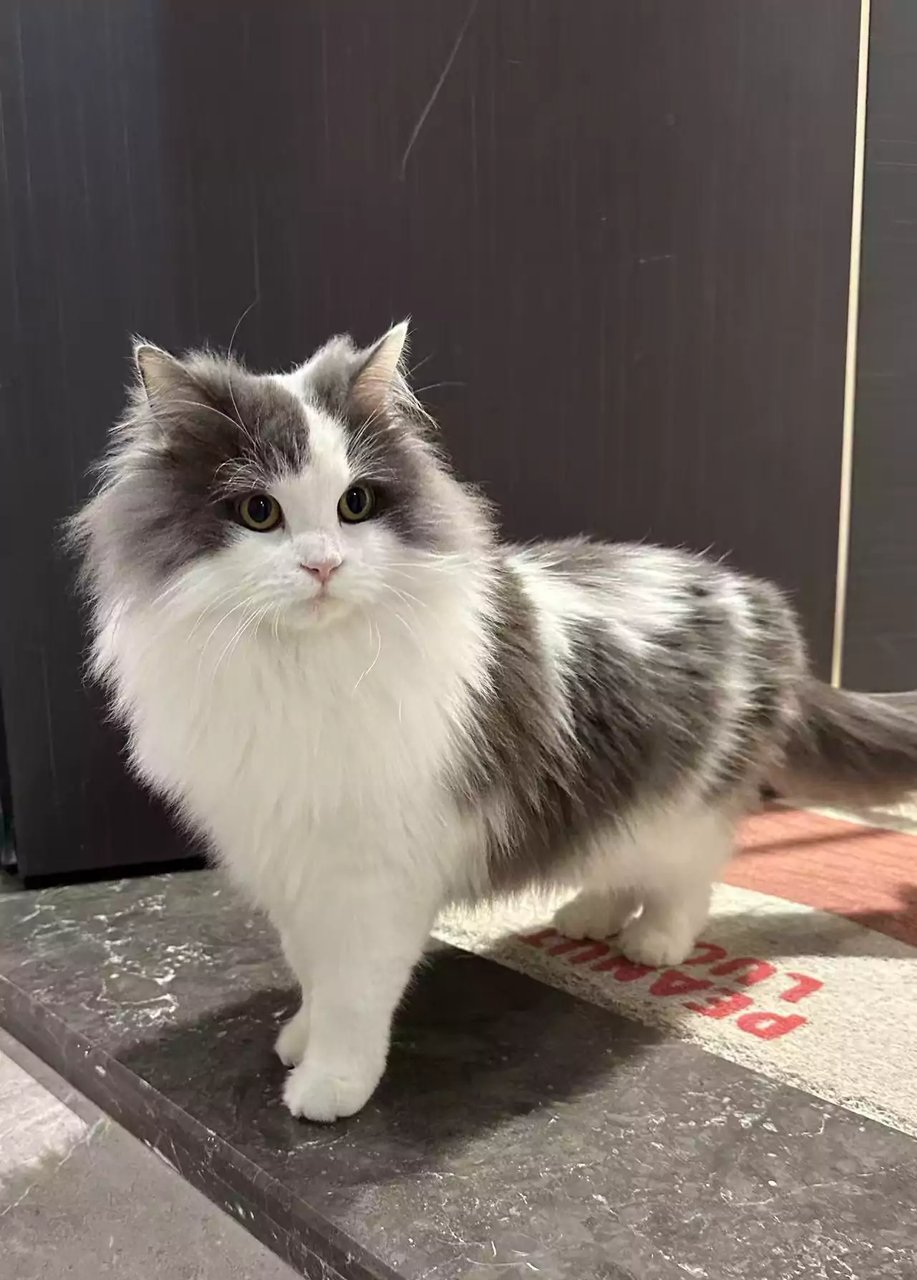
Replacement subject Kling 4.0 output
Dog clip recast with a cat
Prompt Replace the Element in @Video 1 with the Element from @Image 1. Keep everything else unchanged, including the background composition, camera movements, lighting, shadows, audio, and video duration. Ensure the replacement Element integrates naturally into the original footage, matching the original Element's position, scale, movements, and trajectory.
Reading the demos
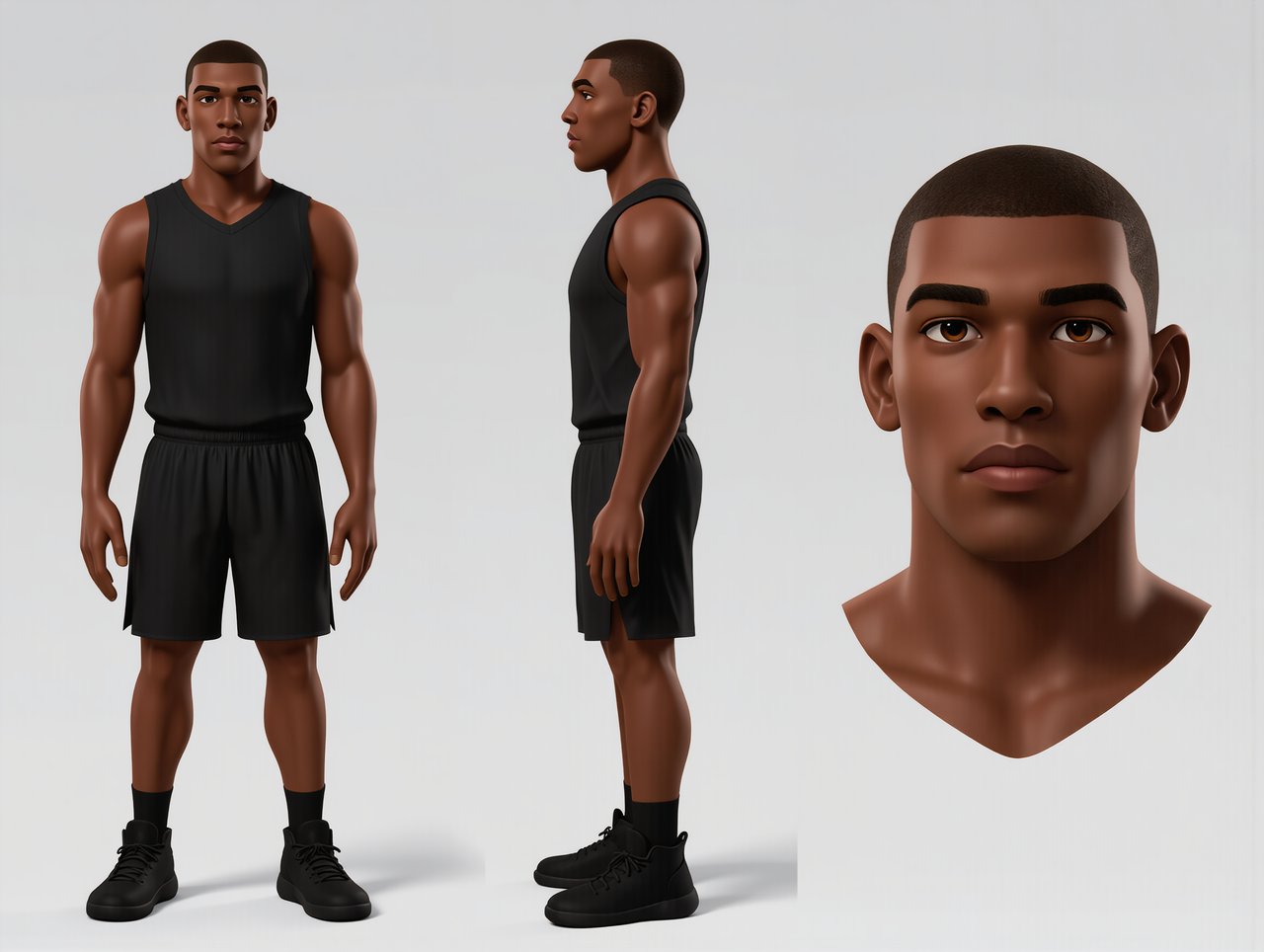
- Arena dunk. Two images split the job: a turnaround sheet locks the player’s look from three angles, a second image fixes the arena, and the clip supplies only the dunk. The same three inputs form a reference set on Kling4.
- Canyon jump. Kling AI pinned the photo as the opening frame. On Kling4, attaching a clip turns every upload into a reference, so the prompt’s “@Image1 is the first frame” works as a request, not a hard rule. The prompt shown is Kling AI’s.
- Dog to cat. A recreation guided by the clip, not an edit of the original file: Kling4 does not offer Kling 4.0 video editing. The prompt shown is Kling AI’s.
Motion control questions
Is there a Kling 4.0 motion control model?
Not as a separate model. Kling 4.0 has two entry points, Omni Reference and Keyframes, and motion transfer happens inside Omni Reference: you attach a clip and the prompt tells the model to copy its movement. Kling’s dedicated motion control models are Kling 3.0 Motion Control and the older Kling 2.6 Motion Control, and both run here alongside Kling 4.0.
What does character orientation change?
It decides whose facing wins on the two motion control models. Following the image keeps the character turned the way your picture shows and caps the driving clip at 10 seconds. Following the video lets the character turn, walk away or spin as the performer does, with clips up to 30 seconds. Dances and sports usually need the video setting; a fixed, front-facing pose is safer with the image setting.
Why do hands or faces drift in the result?
Usually the clip asks for something the image cannot supply. A hand hidden in the picture has to be invented when the performer shows it, and a face seen only from the front has to be guessed when they turn. Use a character image that shows what the clip will reveal, trim fast spins, keep the performer large in frame, and add “keep the face unchanged” to the prompt.